

Start with the basics before you plug anything in
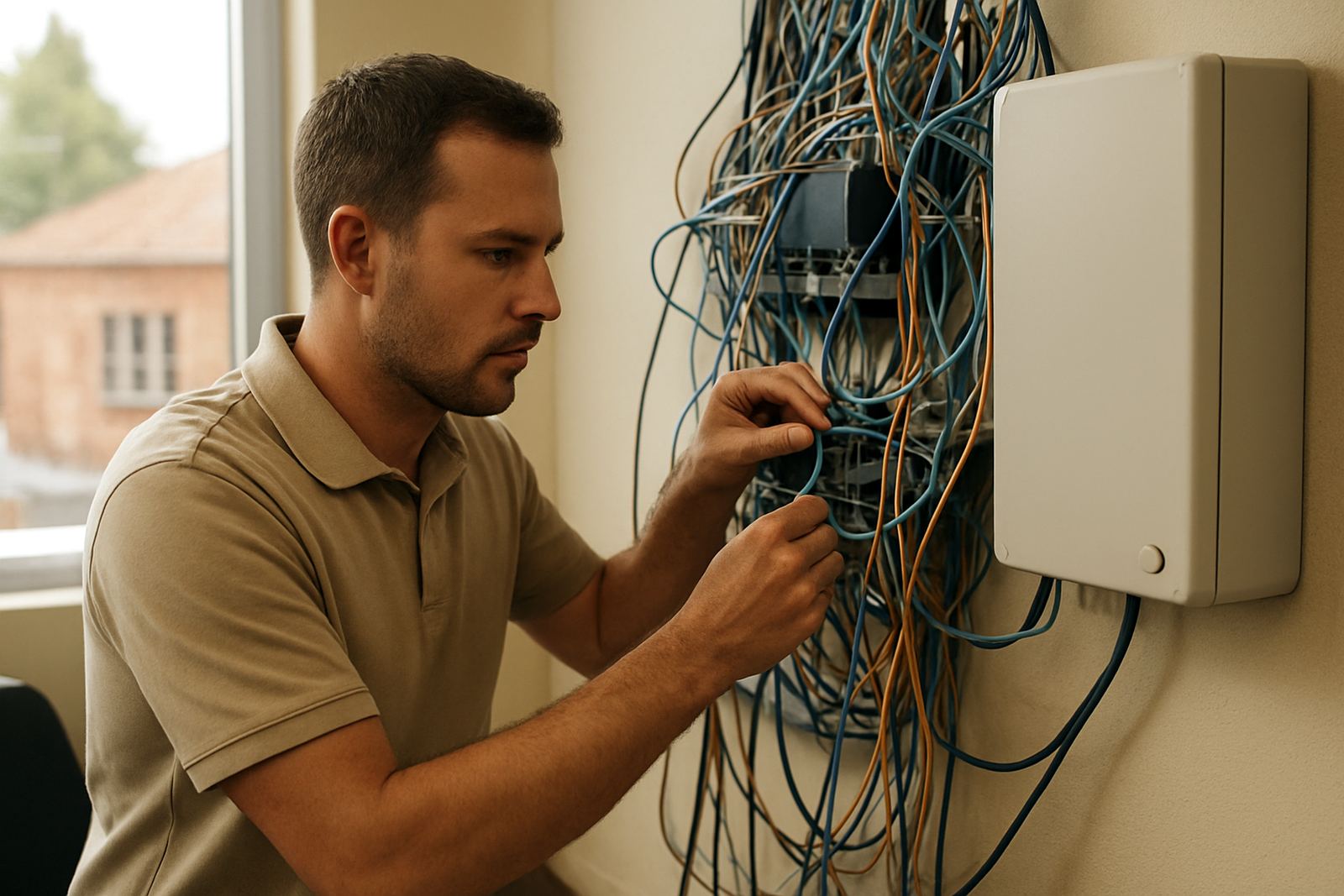
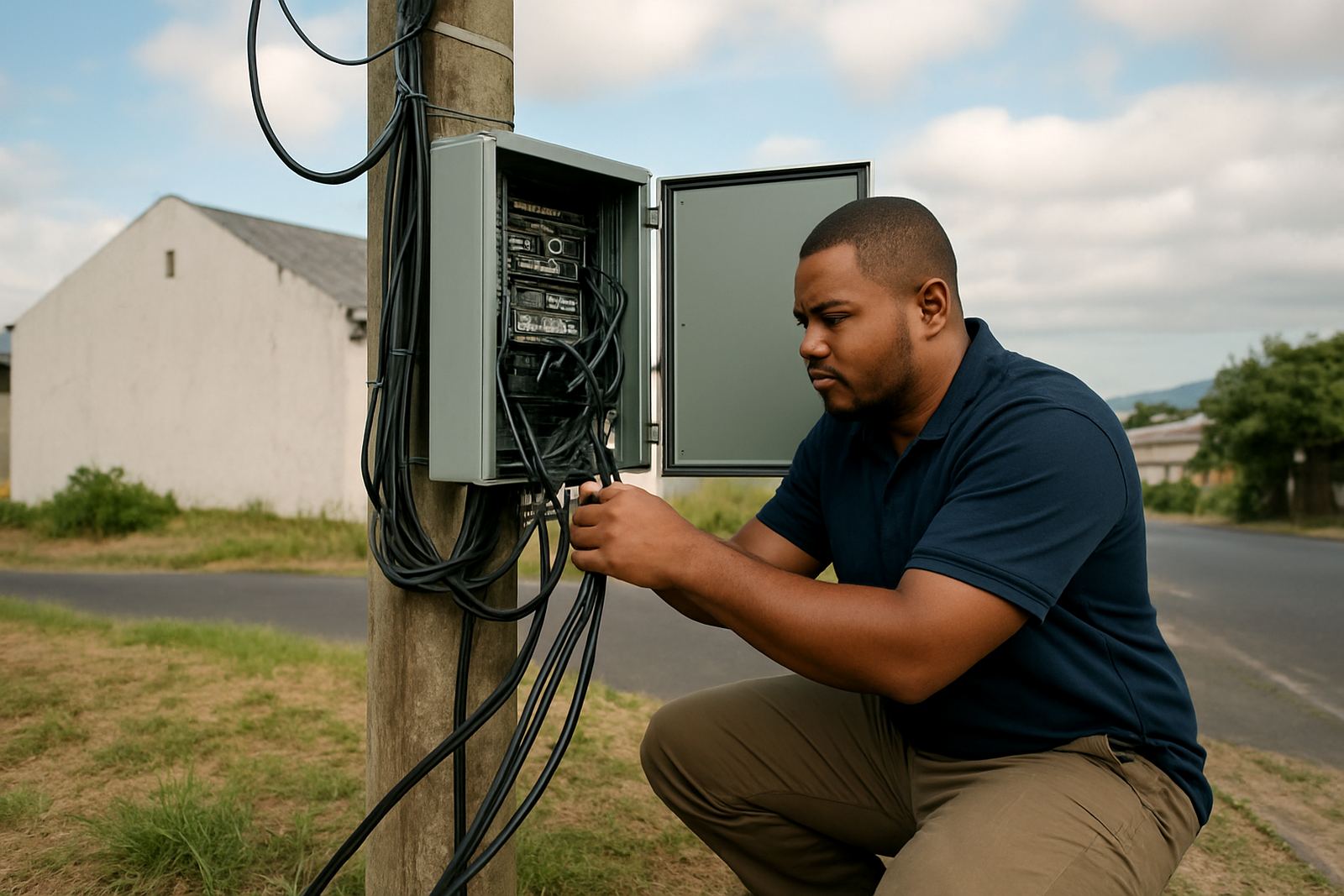
Before you connect phones or log in to a softphone, make sure your fibre line is live, your router has power, and the office has a stable network connection. In Cape Town and along the coast, humidity and salt air can affect loose connectors, so check that all cables are seated properly and that nothing is bent or damp. If load-shedding has just ended, give the router and phone equipment two to three minutes to come back online before you test calls.
It helps to keep one person responsible for the first checks, especially in offices with multiple users. Confirm the office address, the main contact number, and which extension should ring first. If your team is moving between Bellville, Century City, Paarl or Stellenbosch, write the setup details down so the same steps can be repeated at each site. A quick note pad still saves time, even now.
- Check power, fibre and LAN cables first.
- Restart the router before testing the phones.
- Keep account details and extension names close by.
Set up office phones for first use
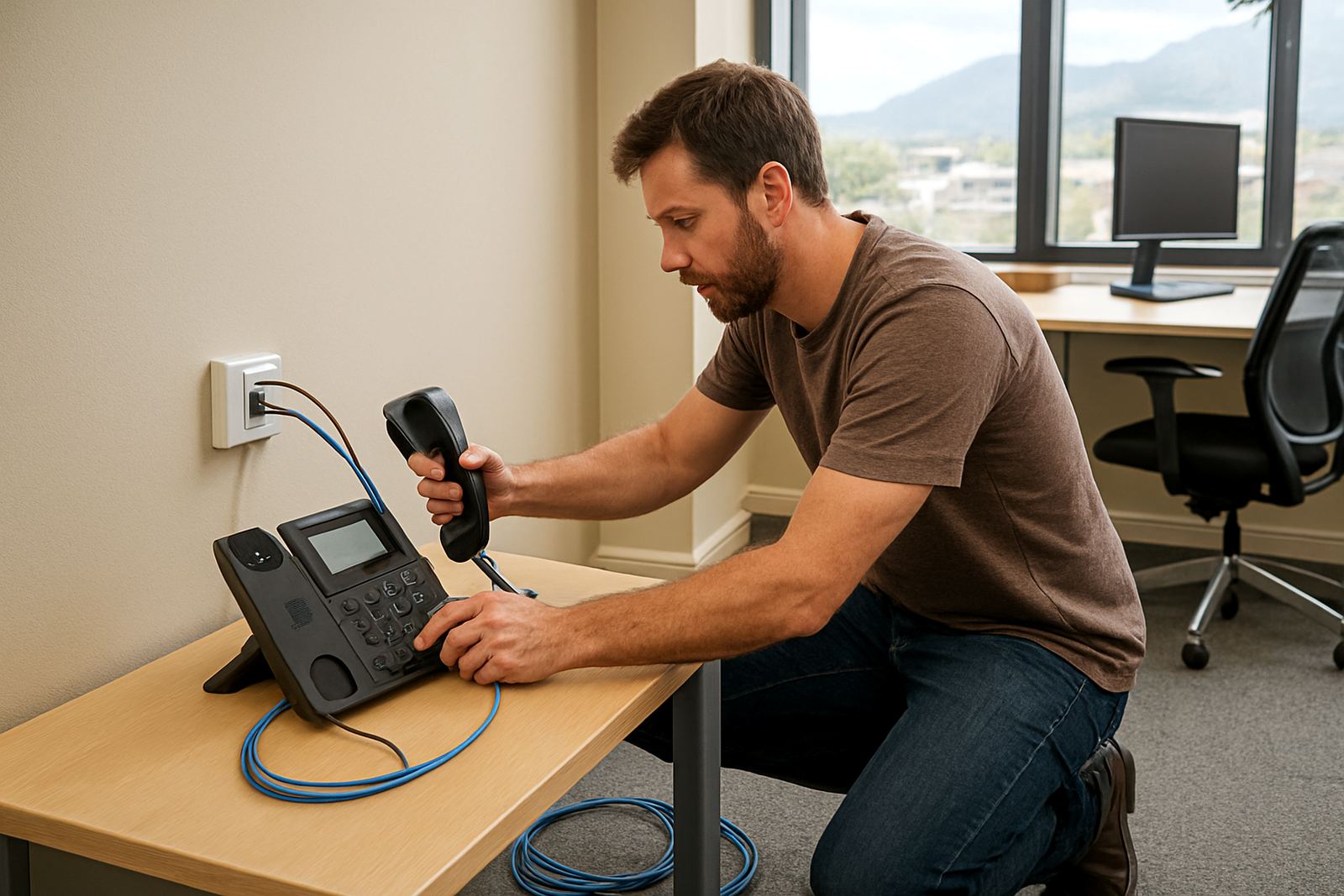
For a new phone, connect the handset, power and network cable, then wait for the screen to show that it has registered. If the phone asks for an extension, enter the details supplied for that user. For shared reception units, make sure the main line is assigned to the correct button and that ring timing is set to suit the office hours. A receptionist in Somerset West will often need a different call flow to a two person office in Century City.
Once the phone is live, make a short test call to a mobile and then to a landline. Check volume, speaker mode and whether caller ID displays correctly. If the phone shows no service, confirm the cable goes into the network port, not the power port. That mix-up happens more often than people think.
- Use the network port for the data cable.
- Test both incoming and outgoing calls.
- Check reception and handset volume after setup.
Voicemail setup that staff can actually use
Voicemail works best when every user records a clear greeting and knows how to retrieve messages. Start by logging in with the temporary PIN, then change it to a private code straight away. Record a greeting that names the business and gives the caller a simple option, such as leaving a message for the person or department they need. Keep it short, callers do not want a long script.
For shared lines, decide what should happen after hours. You may want calls to ring for 15 to 20 seconds during the day, then move to voicemail after closing time. If the office closes early on Fridays or has staff working remotely, update the schedule so calls are not lost. Check message notification settings as well, because missed alerts can slow down follow up.
- Change the default PIN immediately.
- Record a short greeting with the business name.
- Set day and after-hours rules separately.
Get softphones working on laptops and mobiles
Softphones are useful for teams that work from more than one place, but they need the right login details and a solid internet connection. Install the app on the device, then enter the username, password and server details provided for the account. On laptops, allow microphone and speaker access. On mobiles, check that the app is allowed to run in the background so calls do not drop when the screen locks.
If call quality sounds weak, move closer to the WiFi access point or switch to a stronger connection. In a small office, one user may be fine while another near a concrete wall has trouble. That is usually a signal issue, not a phone problem. Make one test call on WiFi and another on mobile data if your plan allows it, so you can compare quality and work out what is causing the issue.
- Use the correct login details for each user.
- Allow microphone, speaker and notification access.
- Test on WiFi first, then compare with mobile data if needed.
Sort out office WiFi so calls stay stable
Good WiFi matters when phones, laptops and printers all share the same network. Place the router in an open area if possible, not inside a metal cabinet or behind a filing wall. In larger offices, one router may not cover every room evenly, especially in older buildings in the CBD or in long single storey spaces in Bellville. If staff report dropped calls or slow access, check where the weak spots are before adding more users.
Give voice traffic priority where the equipment allows it, and keep the WiFi name simple for staff to find. Avoid changing the password too often unless there is a security reason. If the office has guest access, keep it separate from the business network so visitors do not affect call quality. A small bit of planning here prevents a lot of complaints later on.
- Keep routers clear of cupboards and metal obstructions.
- Use one clear office WiFi name and password.
- Separate guest access from business use where possible.
When to call support instead of trying again
If phones still do not register, voicemail will not save correctly, or WiFi drops every time the power comes back, it is time to ask for help. Make a note of the issue, the time it started, the number affected, and whether it happens on all devices or only one. This helps the support team narrow it down quickly instead of asking you to repeat the same test three times.
For offices planning a move, a branch opening or a number port, support should be involved before the change happens. That way the handover can be timed around business hours and any office relocations can be done with less downtime. If you are in Cape Town, Century City, Somerset West, Paarl or Stellenbosch, keep the site address and contact person ready. For offices elsewhere in South Africa, the same process applies, and the details matter just as much.
Send a message through our contact form with the issue, your company name and the best call-back number. If it is urgent, say whether the office can still take calls or if the whole line is down. That small detail speeds things up more than most people expect.