
What Call Pop Does For A Busy Office
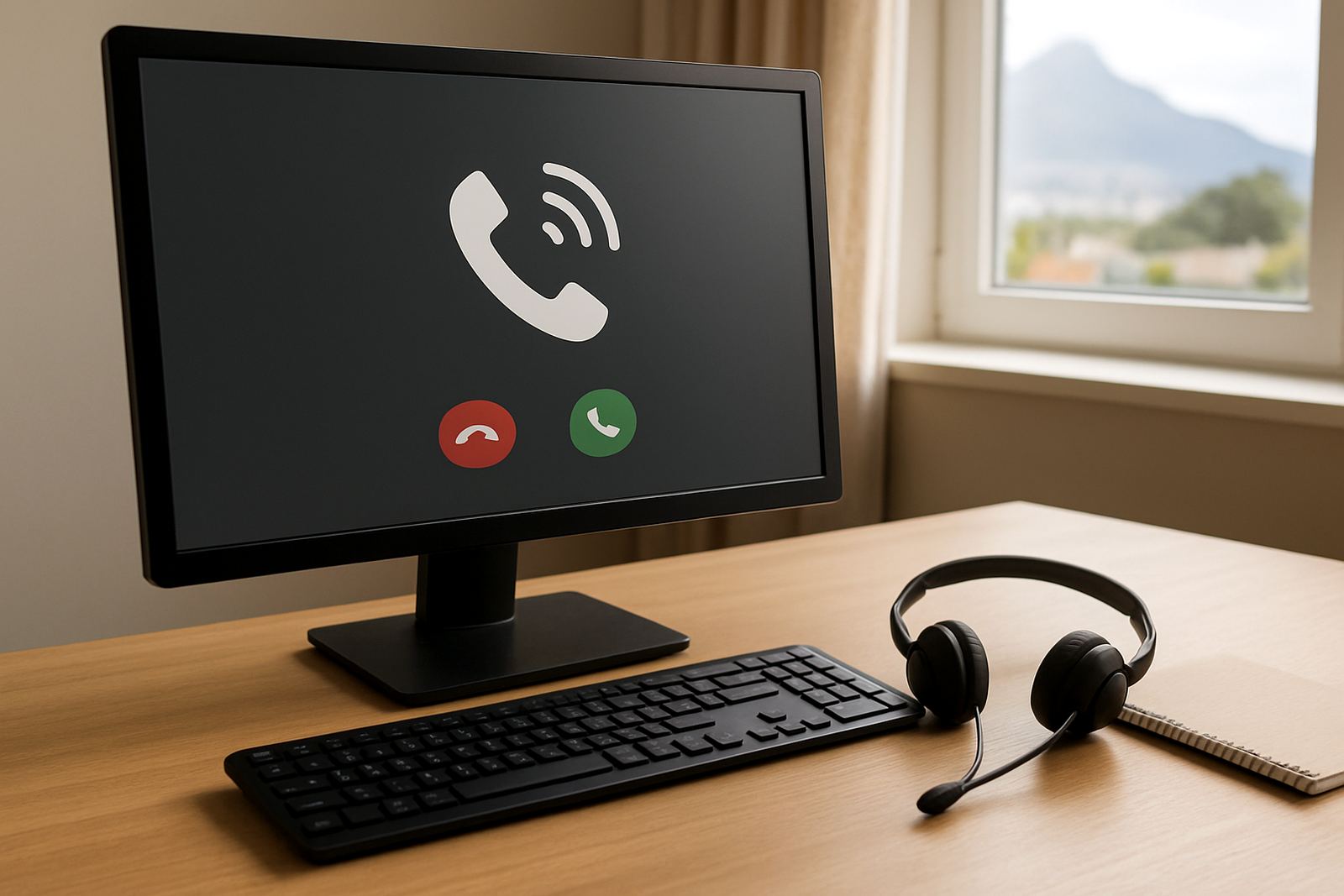
Call Pop is a screen-based caller display feature that brings up incoming caller details the moment the phone rings. Instead of relying only on the handset, your staff can see the number, saved contact name, and any linked notes straight away. That makes it easier to answer with context, especially when the same office fields sales, support and admin calls in one day.
For Cape Town offices and teams working across South Africa, this is useful when calls come in while staff are busy with walk-ins, invoices, stock queries or service bookings. It also helps with repeated callers, because the person answering does not have to ask the same questions every time. A small thing, but it saves time all week.
Display Options And Typical Setups
Call Pop can be set up for a single reception point or for several users across an office. The display can appear on a computer screen or on a supported call interface, depending on how your phone system is arranged. In a small office, one reception user may be enough. In a busier team, sales, accounts and support can each have their own view.
- Single-user display for reception or front-line answering
- Multi-user display for shared call handling
- Caller pop with contact name, number and saved notes
- Linked record view for repeat customers and suppliers
If your team works from Century City, Bellville, Paarl or Stellenbosch, the right setup depends on how calls move through the business. A sales office may want more detail on screen, while a smaller admin team may only need name and number with quick access to call history.
Where Call Pop Suits Best
This product suits offices that answer regular inbound calls and need quick recognition. It is a practical fit for professional services, small customer care teams, medical rooms, property offices, logistics counters and any business that wants faster screening of incoming calls. If your staff spend a lot of time asking who is calling and why, Call Pop usually pays for itself in saved minutes.
- Front counters and reception points
- Small sales teams handling repeat clients
- Support teams that need quicker call triage
- Office relocations where the new team needs cleaner call flow
It is also helpful where staff rotate between tasks. When a call pops up with the caller name already visible, anyone can pick up more confidently, even if they did not make the original contact. That keeps service consistent, especially during lunch breaks, load-shedding shifts or after-hours cover.
Installation, Power And Network Needs
Call Pop relies on a stable fibre connection and a properly set up VoIP environment. In most offices there is no separate gas requirement, just a dependable power supply for the router, switch and computers used to show the caller information. During load-shedding, the system will only stay online if your network equipment has backup power from batteries or UPS units.
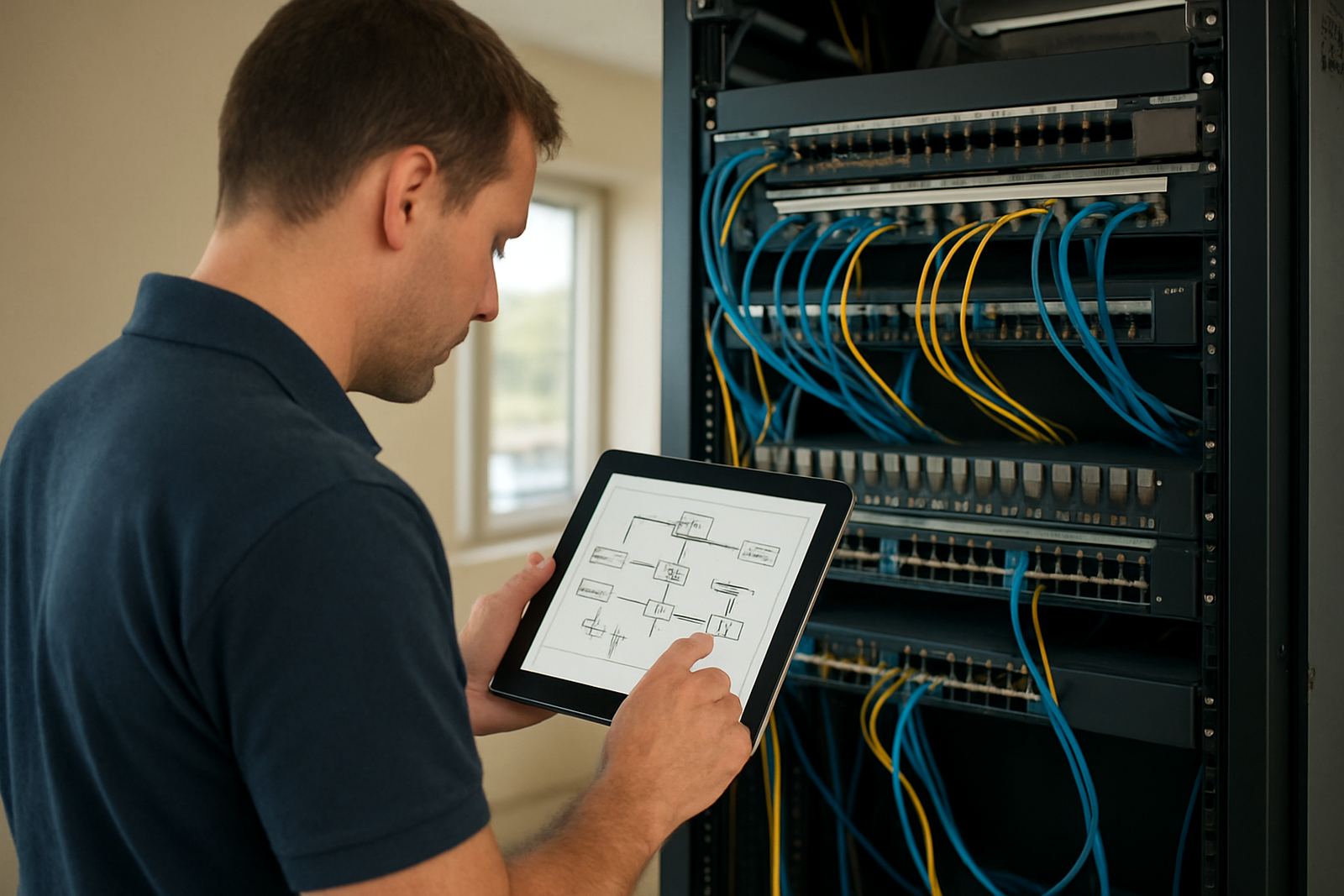
We normally check the office layout, cabling, internet handover point and the number of users before installing. If the team is spread across rooms or floors, network cabling may be needed to keep the display consistent. In coastal areas like Somerset West and Cape Town, it is also worth keeping equipment away from damp corners and direct sea air where possible.
- Stable fibre line and working VoIP service
- Computer or supported device for the pop display
- UPS or battery backup for router and switching gear
- Clean network cabling and enough switch ports
Care, Updates And Ongoing Support
Call Pop itself does not need mechanical servicing, but the office network around it does need basic care. Keep the software or phone platform updated, check that contact records are accurate, and make sure the team knows where to look when a caller appears. If caller data is wrong, the feature still works, but the benefit drops quickly.
We also recommend testing the display after any fibre work, router change or office move. That way, if a phone starts missing caller details or showing duplicates, it can be corrected before it affects the front line. Our support team can assist after-hours if the business cannot afford downtime, which matters for reception teams and service counters that open early.
What To Check Before You Order
Before ordering Call Pop, confirm how many users need the display, what information should appear, and whether your current network can support it. If you use number porting or you are moving premises, it is best to sort out caller display at the same time as the line setup so there is no gap once the phones go live. Check who will manage the contact list too, because somebody has to keep it tidy.
- Number of users who need caller pop access
- Whether names, notes or only numbers should show
- Existing fibre speed and router capacity
- Backup power for load-shedding periods
- Need for cabling changes or office relocation support
- Who will maintain contact records and user training
If you are fitting out a new office in Cape Town or rolling out the service to branches in Bellville, Paarl or Stellenbosch, we can help match the setup to the way your team actually works. That avoids paying for features nobody uses, and keeps the call flow simple.
Key facts
| Function | Displays incoming caller details on screen for quicker recognition and response |
|---|---|
| Use case | Small offices, reception points, shared call handling and service teams |
| Display details | Caller number, saved name and linked notes where available |
| Setup options | Single-user or multi-user call pop display |
| Network requirement | Fibre internet with VoIP service and local network access |
| Power requirement | Router, switch and computer backup recommended during load-shedding |