
Start with the right guest WiFi goals
Before you add another wireless network, decide what guest access must do in your office. Most small teams need visitors to get online for message, messages, banking or a quick document upload, but they should not reach shared drives, printers or internal systems. That separation matters just as much in a two room office in Bellville as it does in a growing team in Somerset West.
A good guest setup should be simple for visitors to join, easy for staff to manage and separate enough to keep your main network safe. If you have a reception area, client meeting room or a training space, guest WiFi can reduce pressure on staff members who would otherwise keep sharing the main password. It also helps when contractors, delivery teams or short term consultants need access for a few hours.
- Keep guests off your business devices and file shares
- Set a speed limit so visitors do not crowd out staff traffic
- Use a separate password or access code that can be changed quickly
- Make it easy to turn off guest access after an event or office move
Choose the safest network structure
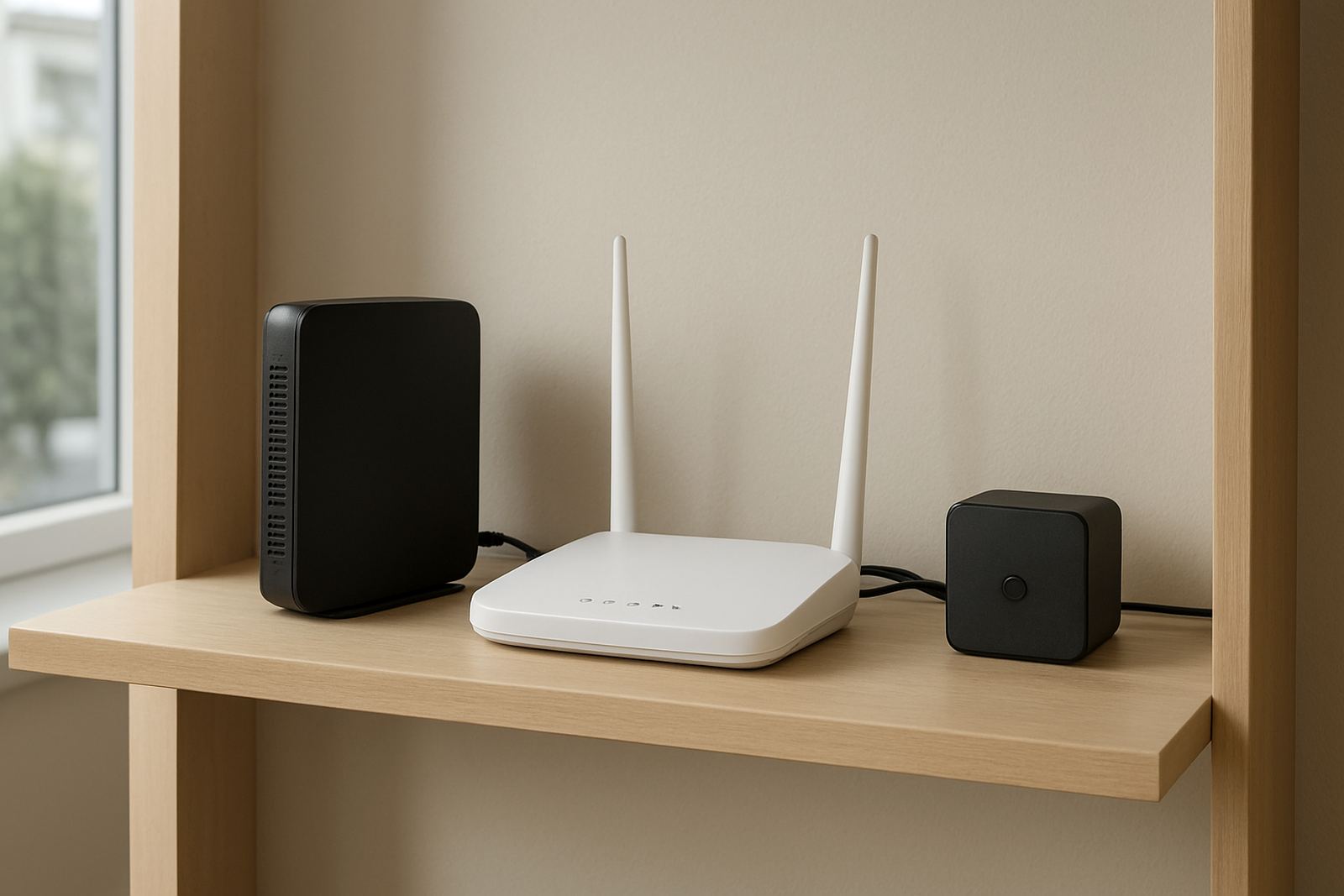
The safest setup uses a separate guest network on your router or wireless controller, with its own name and rules. This should be isolated from your office LAN so a visitor can get internet access but cannot scan internal devices. If your office uses network cabling, multiple access points or a VoIP phone system, the guest network should be planned around those services, not added as an after thought.
In practice, the guest network can be configured with its own password, captive portal or time limited access code. For many small offices, a simple branded login page with a clear use policy is enough. In higher traffic spaces, you may want the network to refresh automatically each day or week. That helps if your premises has regular visitors, tenants or shared boardrooms.
If your office is in a coastal area like Cape Town, think about humidity and salt air too. Access points and cabling in ceiling spaces or near open windows should be installed neatly and checked now and then. Small faults often start with poor cable terminations or overloaded equipment, not with the WiFi itself.
- Separate guest traffic from staff traffic
- Hide internal printers, servers and file shares from guests
- Use equipment rated for your office environment
- Plan for secure restart after load shedding
Set bandwidth limits that keep the office working
Guest WiFi should not take bandwidth away from your team. If you have fibre installed, you still need sensible limits. A handful of visitors watching video or uploading large files can slow cloud tools, VoIP calls and payment systems. That is why bandwidth shaping is part of the setup, not a nice extra.
For small offices, start with a modest guest limit and review it after a week or two. If your team is mostly on calls and message, a lower cap may work well. If you host clients for meetings or training sessions, you may need a little more. The point is to protect your core services first. During load shedding, this becomes even more important because backup power and mobile failover often have limited capacity.
You should also decide whether guests may stream media, make video calls or use large cloud sync tools. A clear policy avoids awkward conversations later. If the office is in a shared building, a fair-use setup can stop one tenant from using all the available speed.
- Prioritise VoIP, banking and business apps over guest browsing
- Limit video streaming where possible
- Review usage when staff complain about slow calls
- Keep an eye on peak times, especially mornings and lunch hours
Use a clear access process for visitors
The best guest WiFi is easy enough that reception does not spend the day explaining it. Keep the join process short and write it down for staff. If you use a password, change it on a set schedule. If you use vouchers or codes, decide who can issue them and how long they remain active. This is especially useful in offices with regular couriers, consultants or short term training groups.
It helps to prepare a simple guest access sheet that covers the basics. Staff should know what to say, who to call if a visitor cannot connect, and when to refuse access. Offices near Century City, Paarl or Stellenbosch often have a mix of client visits and mobile teams so clear steps save time every day. A well managed guest setup also reduces the chance of staff sharing their own login details, which is never a good habit.
Keep the process short but firm. Visitors should know the network is for temporary use only, and that business tools, internal drives and shared office printers are off limits.
- Prepare a single join code or voucher method
- Write a short connection guide for reception and meeting rooms
- Set an expiry time for each visitor session
- Keep a record of who can issue access
Add basic security and compliance checks
Guest access should be secure enough for normal office use and sensible enough for South African business conditions. That means keeping your router firmware updated, changing default settings and checking who can access the admin side of the network. If you store client information or process payments, ask your service provider whether the guest network should be logged separately from staff traffic.
If you have a workplace policy, include guest WiFi in it. Visitors should know they are responsible for lawful use, and staff should know not to hand out internal passwords to make life easier. In some industries, this matters for municipal, legal or client confidentiality reasons. A small office may not need complicated controls, but it does need discipline.
Also look at physical security. If access points are easy to reach, they can be unplugged or damaged during office moves, cleaning or maintenance. A tidy install with proper cable support and clear labelling makes support much easier later on.
- Change admin passwords and update firmware regularly
- Separate guest logs from business device logs if needed
- Label access points and network cabinet ports clearly
- Include guest rules in staff induction
Test the setup before visitors arrive
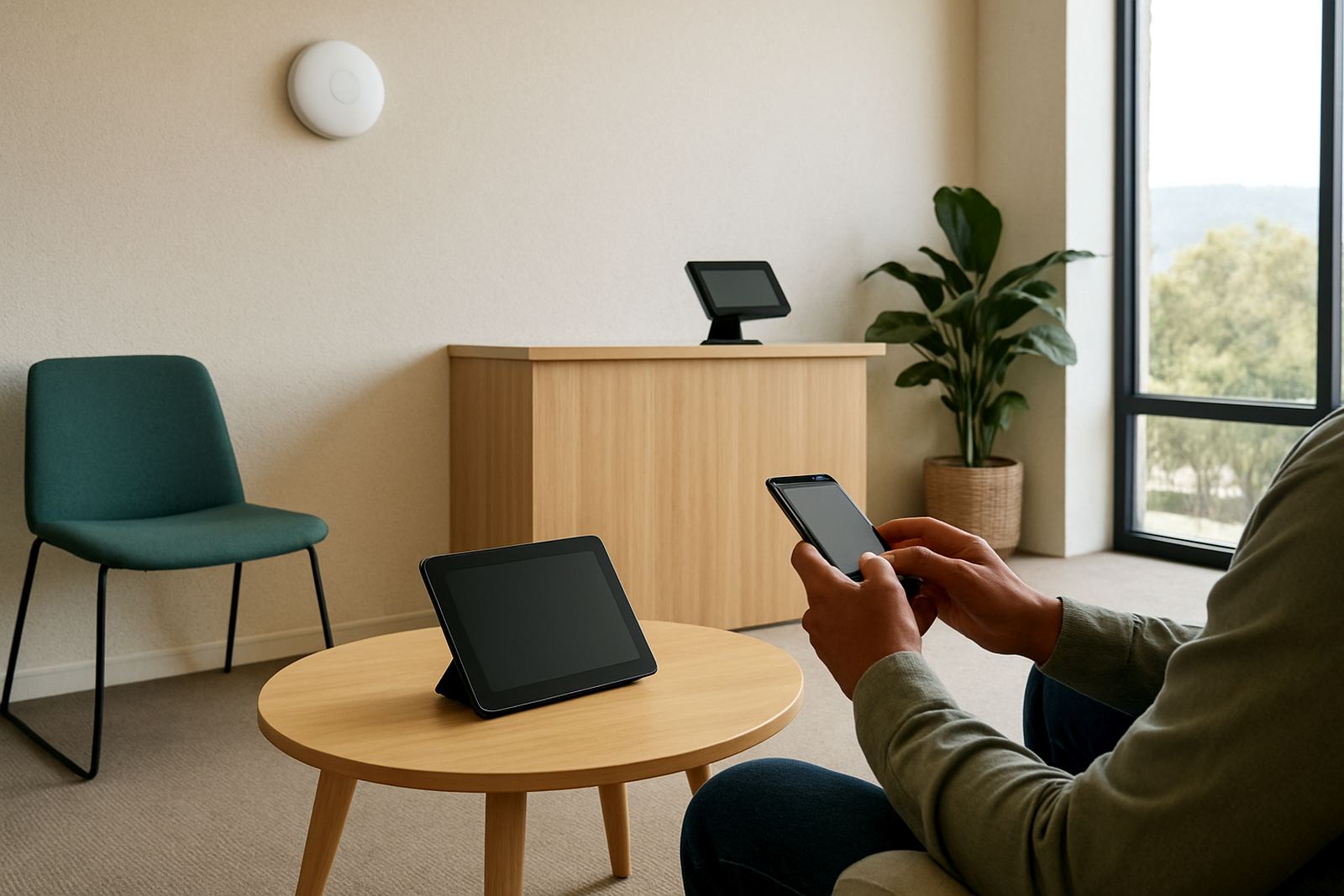
Do not wait for a client meeting to discover the guest network is slow or inconsistent. Test it from the reception area, boardroom, open office and any courtyard or waiting space where visitors may sit. Check that pages load, calls are not affected and users are kept off internal resources. If your office has recently moved, these checks matter even more because cabling routes and wireless coverage can change after a relocation.
A practical test should cover everyday use, not just a one minute connection. Let someone connect, browse, open message and leave the network. Then see what happens when two or three people connect at once. If there are dropouts, slow speeds or strange password prompts, sort them out before the next visit. Good after-hours support can help if problems show up outside business time.
Keep a simple checklist in the office so staff can repeat the checks after power cuts, equipment replacements or layout changes.
- Connect from all visitor areas
- Check speed, signal strength and login steps
- Confirm guests cannot reach staff printers or file shares
- Test again after load shedding or router restarts
Keep guest WiFi easy to manage over time
Guest WiFi works best when someone owns it. That person can review passwords, monitor usage, arrange support and make sure the setup still fits the office. In a growing business, small changes add up fast: another meeting room, a new telephony system, more laptops or a move to fibre can all affect how guest access behaves. A monthly check is usually enough for most small offices.
If you need help planning the network, NewTel supports fibre installation, VoIP deployment, network cabling, WiFi design and phone system support for offices in Cape Town and nationwide. The team at Century City works with businesses in Bellville, Somerset West, Paarl and Stellenbosch, and can assist with office relocations, number porting and after-hours support when needed. Good guest WiFi should be practical, secure and easy to live with, not another admin burden.
When it is set up properly, visitors get online quickly and your core office network stays protected. That saves time for staff, reduces callouts and keeps day to day operations running more smoothly, even when the power is off for a while.