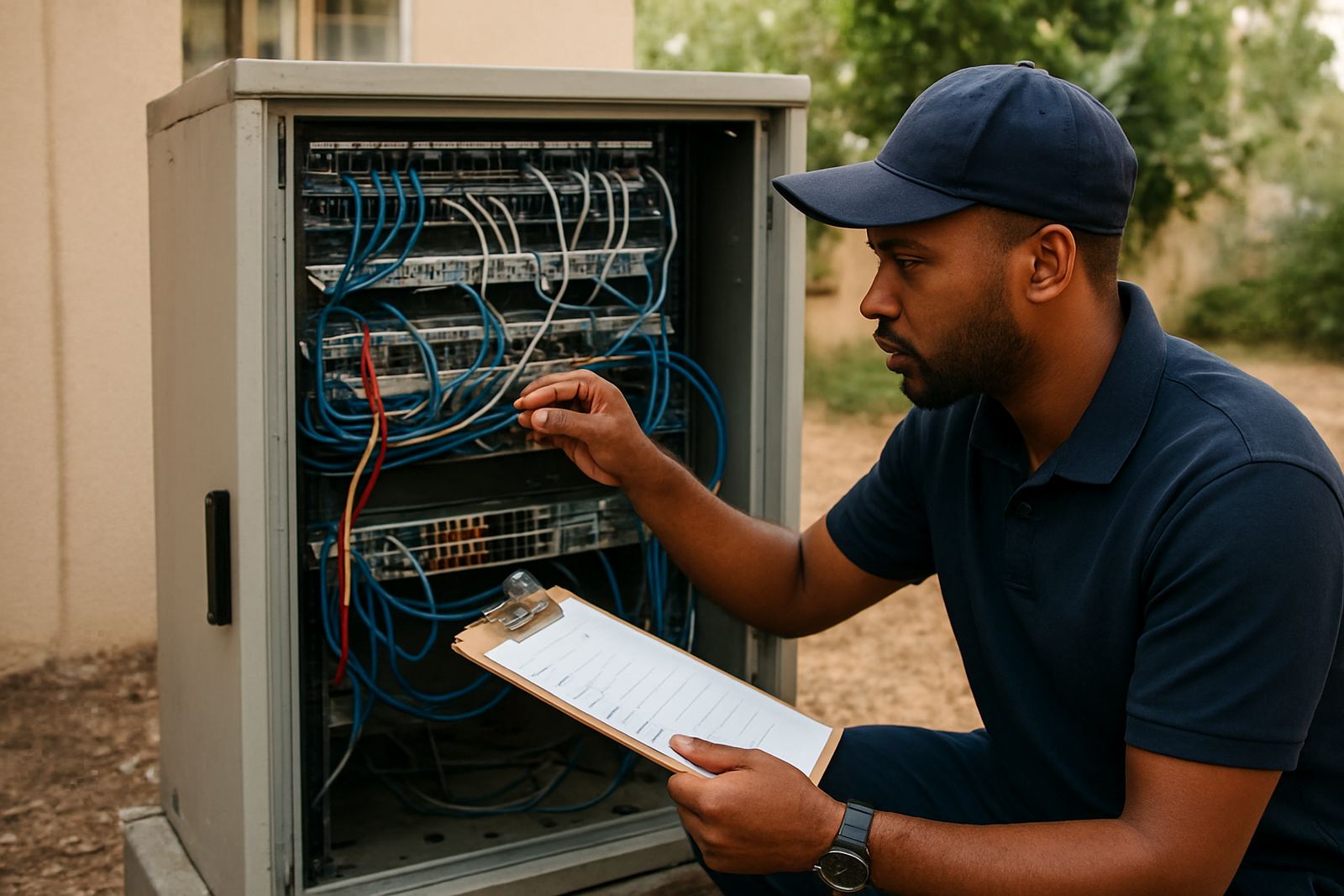


Start with what must stay online during an outage
Before you choose any backup option, list the services that cannot stop. For most small offices, that means VoIP calls, card machines, message, cloud accounting, printers on the network and access to shared files. A 5 person office in Century City will need a different setup from a 20 person team in Bellville, so match the solution to the actual load.
It also helps to think about the kind of interruption you face. In Cape Town that can be load-shedding, a fibre cut near the road reserve, an ONT fault, or a power issue in the building. If your staff work from one office only, the aim is simple: keep the core services up long enough to carry on trading, even if not every device stays connected.
- List the devices that need internet access first
- Check whether calls, payments and remote access must stay live
- Note your busiest hour and how many users are active then
- Record your current router model, fibre speed and power backup
Compare the main backup options by speed and reliability
There are a few common ways to keep an office online. Each one has a trade off between cost, speed and how much manual action is needed when the primary line fails. A small Somerset West office might only need a simple failover path, while a Paarl branch with heavier voice traffic may need a more capable setup.
Fixed wireless can be useful where another line is hard to get in time, but signal quality changes with distance and obstacles. A second fibre service gives better day to day performance, but installation can take longer and may need wayleave approval from the landlord or body corporate. Mobile backup is quick to deploy, though data bundles can be expensive if the primary service is down for hours. In many offices the best answer is a main fibre link with a secondary connection that activates automatically.
- Second fibre line: good speed and stable latency, better for ongoing use
- Fixed wireless backup: useful where quick activation matters
- Mobile router: fast to set up, better for short outages
- Automatic failover: reduces downtime because the switchover happens on its own
Size the backup for real office use
Backup connectivity should cover the actual traffic your team generates, not just keep a light blinking. VoIP calls use less bandwidth than video meetings, but several calls at once still need steady latency. If staff keep working in cloud systems during a power cut, the backup line must support that too.
A useful rule is to match the backup line to about 40 to 70 percent of your normal requirement, depending on what must stay on. For example, if your main fibre is 100 Mbps, a 20 to 50 Mbps backup can be enough for calls, message and basic admin. If the office runs file sync, remote desktops or a busy reception line, you may need more. Also check upload speed, not only download, since voice and cloud backups depend on it. A line with decent download but weak upload will frustrate users quickly.
Ask how many users will remain connected during failover and whether non essential devices can be dropped automatically. That keeps the backup clean and stops one person’s large download from slowing the rest down.
Plan the switchover so staff barely notice
The best failover setup is one that needs little or no action from the team. Automatic switching is important in offices where reception staff cannot stop to reboot equipment every time there is a fault. It is also worth checking how long the switchover takes, because a delay of a few seconds is very different from a delay of several minutes.
For voice services, the router and PBX settings must be aligned so calls continue routing properly. If the office uses number porting or multiple extensions, test incoming and outgoing calls on both connections. In our experience, a quick test after installation saves a lot of trouble later, especially if the building has power issues or the site in question is prone to local network faults.
- Confirm whether the changeover is automatic or manual
- Test calls from reception, sales and management extensions
- Check card machines, VPN access and cloud logins on backup
- Make sure staff know who to call if the switch does not happen
Build the power side of the backup properly
Connectivity backup and power backup need to work together. If the internet stays up but the router, switch or fibre termination point loses power, the plan fails anyway. In many Cape Town offices, the right answer is a small UPS for the core network gear, plus clear runtime expectations during load-shedding. A UPS that only lasts 10 minutes may be enough for a brief bump, but it will not carry a two hour cut.
Keep the core kit on one protected circuit where possible. That usually means the fibre device, router, switch and VoIP equipment, while non essential items stay off the backup supply. In coastal areas like Somerset West and parts of Stellenbosch, heat and humidity can also affect equipment life, so give the hardware breathing space and avoid stacking devices in a closed cupboard. A tidy rack and a labelled power plan makes maintenance easier later.
Use a simple checklist before you sign off
Once you have chosen the backup path, walk through the site and confirm the practical details. This is where many problems are found before they become downtime. Check cabling routes, cabinet space, signal strength and whether the landlord needs notice for any external work. For office relocations, the backup plan should move with the team, not be left behind with the old site.
- Primary and backup line locations confirmed
- UPS runtime tested under load
- VoIP calls tested on both links
- Router failover rules checked
- Support contact details saved
- Staff know what to do during an outage
If the office has multiple branches across Cape Town and nearby towns, ask whether each site should have the same setup or a different one. A central admin office may need stronger continuity than a small satellite branch, and that can save costs without weakening service.
Review the plan every few months
Backup connectivity is not a once off decision. Review it every few months, especially after staff changes, office growth or a jump in call volumes. If the team has doubled, or if more work now happens in cloud apps, the old setup may no longer be enough. The same applies after cable faults, municipal work nearby, or a pattern of outages in the area.
Set a reminder to test the failover, check data usage, and confirm that support numbers still work. A small office in Bellville may only need a light review, while a busier site in Cape Town central could need a more detailed one. The goal is simple: when the main line goes down, your business keeps answering calls, processing work and staying reachable, with very little fuss.