

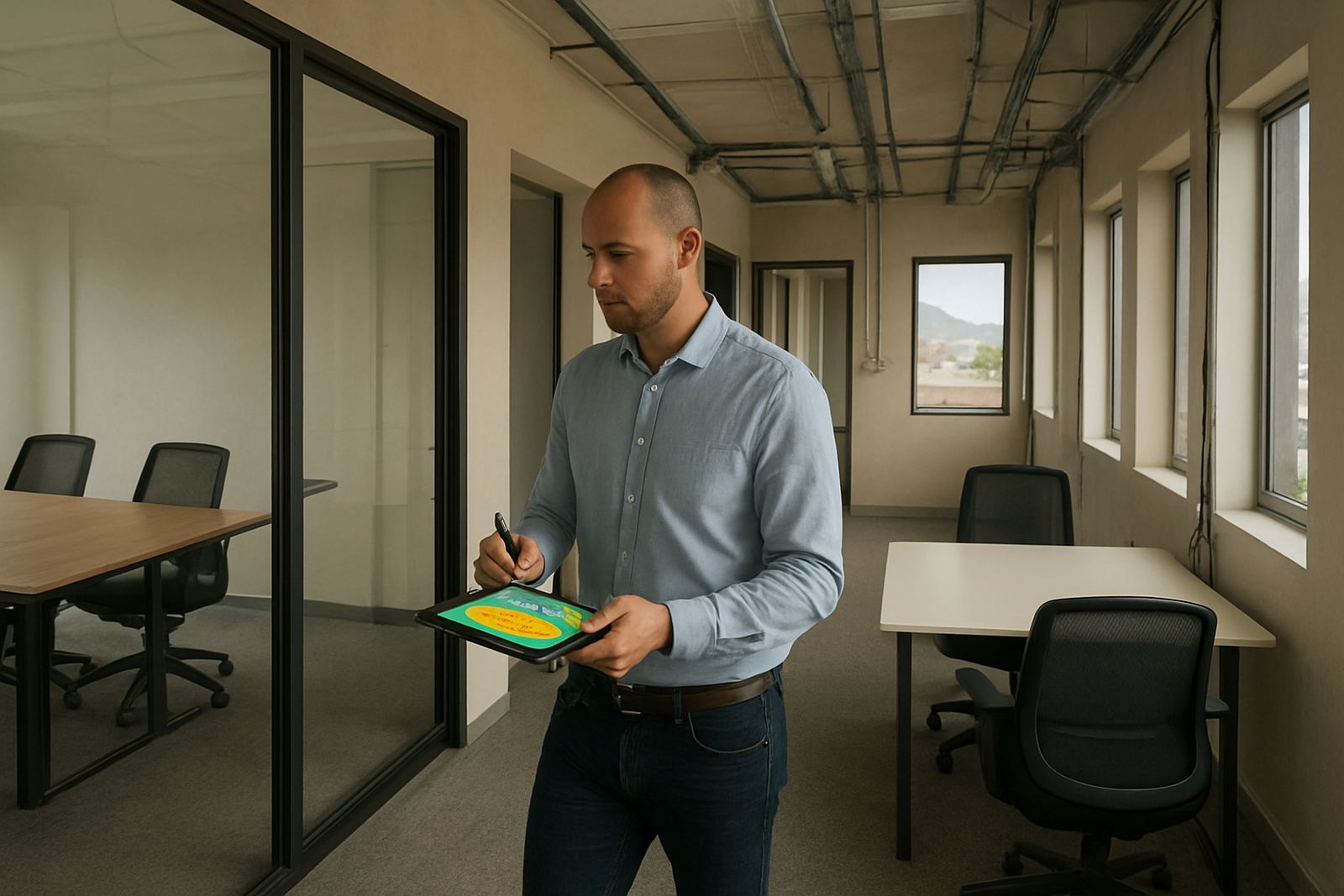
Start with the spaces that matter most
Begin by marking the areas where your team must stay connected all day. That usually includes reception, workstations, meeting rooms, printers, shared filing points, kitchens, and any store room or back office where staff still need access. If you run a small office in Century City, Bellville, Stellenbosch, Paarl or Somerset West, do not assume a neat floor plan means even WiFi. Concrete walls, glass partitions, steel shelving and lift shafts can all weaken coverage in ways that only show up once people start working.
Walk through the office during a normal day and note where calls drop, pages fail to load, or cloud systems slow down. Pay attention to areas near windows, plant rooms, server cupboards and boardrooms with lots of people in them. A signal that looks fine at the router can still become patchy 8 metres away, especially in older buildings or open plan spaces with several small rooms.
- List every area where staff need stable WiFi.
- Mark dead spots, weak spots and places where calls keep dropping.
- Note walls, glass, metal, lifts and other signal blockers.
- Check if the problem happens all day or only when the office is busy.
Map the floor before you test the signal
A simple floor plan helps you see why one corner of the office works and another does not. Draw the layout, then mark the router or access point location, work areas, meeting rooms, and any places where devices are used for long periods. In many small offices, the router sits too close to a wall, behind a cupboard, or beside other electronics. That can cause weak coverage in the far end of the office and create extra trouble when load-shedding changes how equipment restarts after power returns.
Try to understand the shape of the signal, not just the strength. A router placed in the centre of a single open room may cover about 15 to 20 metres well, but a long passage, several brick walls or a metal ceiling can change that completely. In coastal areas, moisture and salty air can also affect cable joints and wall-mounted equipment over time, so check for corrosion and loose fittings while you are there.
- Draw the office layout with walls, doors and fixed furniture.
- Mark where the router, switches and key devices are installed.
- Note materials such as brick, plasterboard, glass or metal.
- Check whether power points, UPS units and cable routes are tidy and accessible.
Test signal strength in every working zone
Once the layout is mapped, test the signal in each zone with a phone or laptop. Stand in the exact places where people work, not only where the router is visible. Check upload and download performance, then open the systems your team uses daily. VoIP calls, cloud accounting, document sharing and video meetings all need a stable connection, not just a strong bars display on the screen. If one area handles reception calls or client meetings, test it twice, once in the morning and once when the office is busy.
Move slowly from room to room and watch for sudden drops as you cross a wall or doorway. If a meeting room works when empty but fails when six people join a call, the issue may be interference, not distance. Thick walls, cordless phones, microwaves and too many nearby devices can all interfere. A proper check will show where the weak points are before you add more equipment or run new cabling.
- Test at each workstation and not only at the router.
- Check web access, file uploads and voice call quality.
- Repeat tests during busy periods and after power returns.
- Record the worst signal spots and the time of day they appear.
Look for interference that hides behind normal office use
Many WiFi problems are not caused by the internet line at all. They come from interference inside the office or from nearby spaces. A high-density block in Cape Town can have many overlapping wireless networks, especially in shared offices, business parks and multi tenant buildings. If your team works near other tenants, the signal may be technically present but still unreliable because too many devices are competing for space on the same channels.
Also check the less obvious troublemakers. Printer rooms, kitchen areas, video screens, CCTV equipment and even a crowded storage cupboard can disrupt the signal. If staff complain about a meeting room where the connection falls away every afternoon, the issue might be a combination of users, devices and building materials rather than one single fault. Little things add up quickly, and it is easy to miss them when everyone is trying to get through the day.
- Identify nearby offices or businesses with overlapping wireless signals.
- Check for electronics that sit close to the access point.
- Watch for recurring issues in meeting rooms, kitchens and reception.
- Ask staff where they switch to mobile data because WiFi is unusable.
Decide whether coverage needs redesign or just better placement
After testing, decide whether the office needs a small adjustment or a full redesign. Sometimes one access point needs to move 3 metres, or a cabinet needs to come away from a wall. In other cases the building layout means you need proper WiFi design, extra cabling, or a stronger network plan for multiple devices and VoIP phones. If you are moving offices or changing the seating plan, test again before staff arrive so the new layout does not create new dead spots on day one.
Small offices often try to save money by stretching one device across too much space. That usually costs more later because staff lose time, calls fail, and support tickets keep coming in. A better plan is to place coverage where people actually work. It should be easy to manage, practical to support, and built with future growth in mind, especially if you expect more users, more laptops or more cloud systems over the next year.
Use a simple checklist before you call for support
If you want to confirm that the workspace is ready for reliable wireless service, work through a final checklist. This helps you separate a coverage problem from a line issue or a device fault. It also gives you clear notes if you need help with fibre installation, VoIP deployment, number porting, phone system support or office relocation work in Cape Town and across South Africa.
- Are the main work areas covered without drops or delays?
- Do meeting rooms support voice calls and video calls?
- Is the router or access point positioned in a practical central location?
- Are there walls, metal fittings or equipment causing repeat signal loss?
- Has the office been tested after load-shedding and after power returns?
- Are staff reporting the same issue in the same places each week?
If the answer to any of these is no, the workspace probably needs a closer look. A proper assessment makes it easier to keep staff online, reduce frustration and avoid wasting time on short term fixes that do not hold up. For offices in Century City, Bellville, Somerset West, Paarl and Stellenbosch, good WiFi starts with knowing exactly where the signal works and where it does not.